
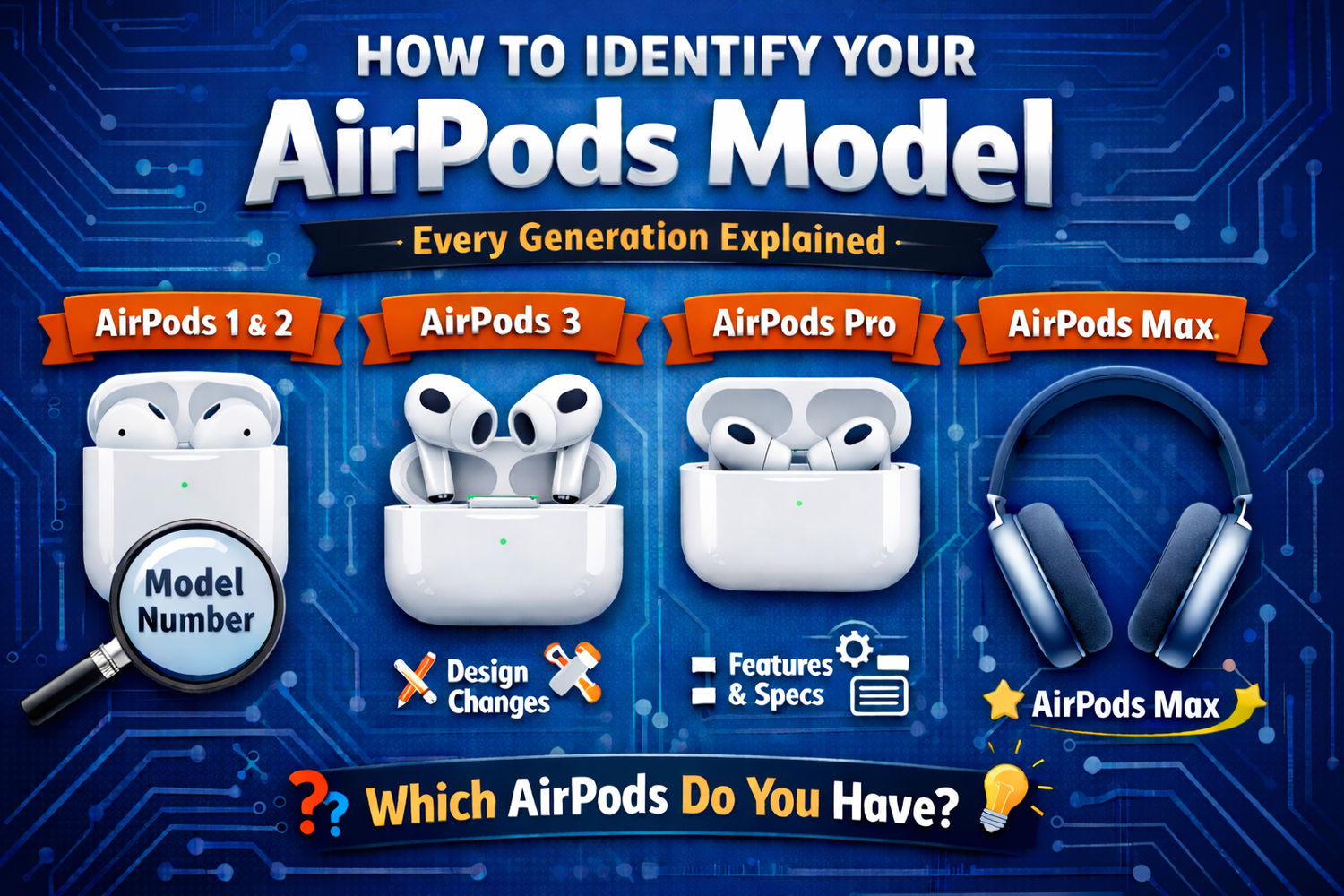
How to Identify
Your AirPods Model
Not sure which generation of AirPods you own? This guide covers every method — from your iPhone settings to the tiny print on the earbuds themselves — so you can find the right parts, accessories, and support every time.
- Why it matters which AirPods you have
- Method 1 — Check via iPhone Settings (easiest)
- Method 2 — Read the model number on the AirPods
- Method 3 — Check the charging case
- Method 4 — Check the original box
- Method 5 — Identify by look and feel
- Complete model number reference table
- Finding the right parts for your model
Why It Matters Which AirPods You Have
Apple has released over a dozen AirPods models since 2016, and many of them look nearly identical from the outside. Knowing your exact model matters in three common situations:
- ✓ Buying accessories — ear tips, cases, and charging cables are not universal across generations
- ✓ Ordering replacement parts — headbands, ear cushions, and charging cases must match your exact model
- ✓ Contacting Apple support — they'll ask for your model number to check warranty status or troubleshoot
There are five reliable ways to find your model. We recommend starting with Method 1 — it takes about 30 seconds and works for most people.
Check via iPhone Settings
If your AirPods are paired to your iPhone or iPad, this is by far the quickest way. You'll have your exact model number in under a minute.
Make sure your AirPods are paired and connected
Put your AirPods in your ears or open the case near your iPhone. They should connect automatically if previously paired.
Open Settings → Bluetooth
On your iPhone or iPad, go to Settings, then tap Bluetooth. Find your AirPods in the list of devices.
Tap the ⓘ icon next to your AirPods
Tap the blue "more info" icon to the right of your AirPods name.
Alternatively, go to Settings → tap your AirPods name directly at the top of the screen (if they're connected, they appear there).
Find the Model Number
Scroll down to find the Model Number — it starts with the letter A (for example, A3056). Note it down and match it against the table in Step 7 of this guide.
On a Mac instead?
Go to System Settings → Bluetooth, find your AirPods in the list, and click the ⓘ icon next to them to view the model number.
Read the Model Number on the AirPods Themselves
Every AirPod has its model number printed directly on it in small text. You'll need good lighting and possibly a magnifying glass — the text is tiny.
For AirPods and AirPods Pro (earbud style)
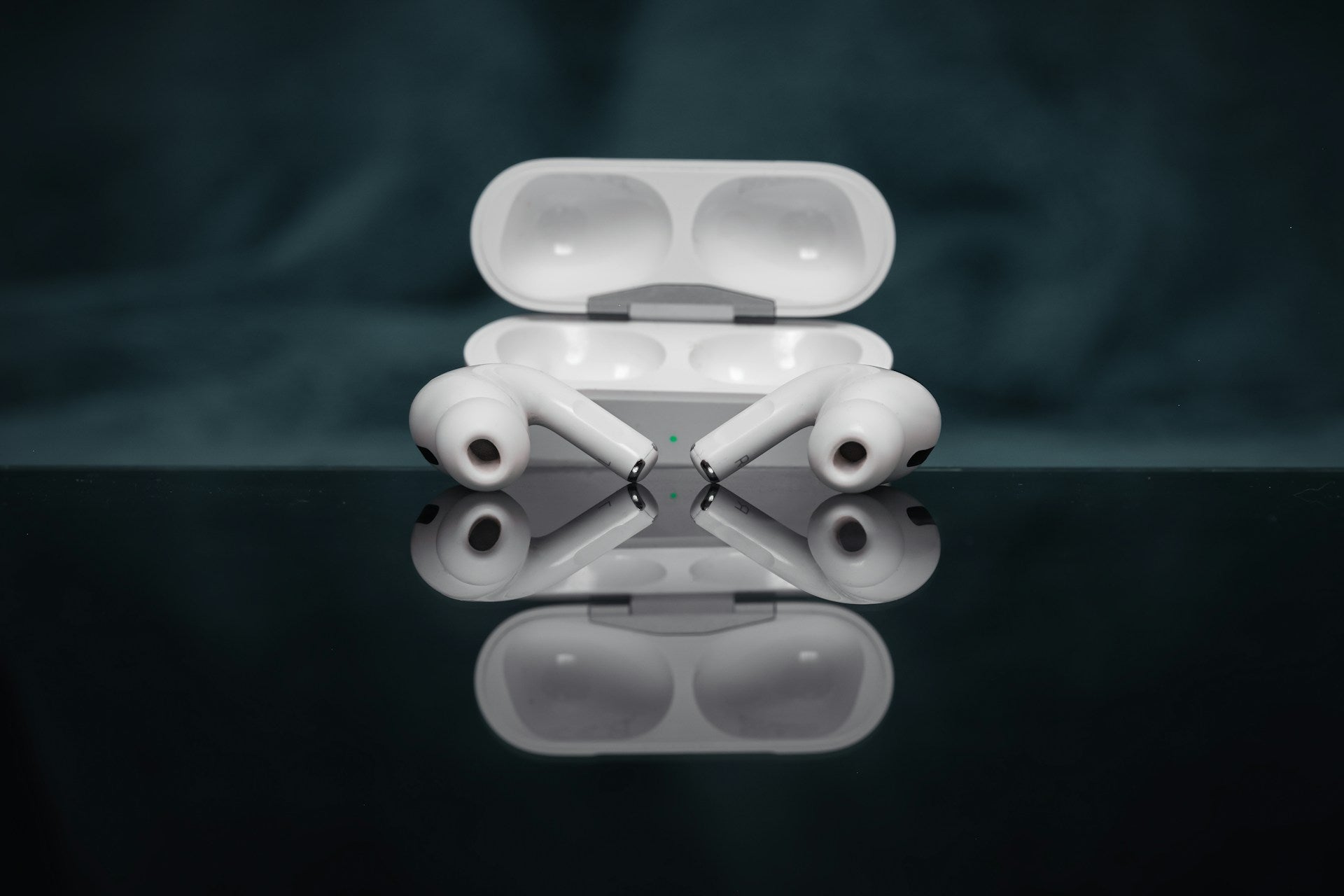
Look at the underside of the earbud — the end that goes into your ear. The model number (starting with "A") is printed there in light gray text near the base of the stem.
For AirPods Max (over-ear)
Remove the left ear cushion by rotating it — it's magnetic and lifts off without tools. The model number is printed on the inner surface where the cushion was attached.
Important: Use the AirPod model number, not the case model number
The charging case has its own separate model number. These are two different things. For identifying your AirPods generation, use the number printed on the earbuds themselves, not the case.
Check the Charging Case
If you can't find the model number on the earbuds, the charging case can help — both through its own model number and its physical design.
Finding the case model number
Open your AirPods case and look at the underside of the lid (the inside surface). The model number and serial number are printed there in small text.
Using the case design to narrow it down
Even without reading the number, the case's physical features can help identify your generation:
Status light location
Inside the case (only visible when open) → AirPods 1st or 2nd generation.
On the front of the case (visible when closed) → AirPods 3rd/4th generation, AirPods Pro 1st gen, or later.
Charging port type
Lightning port → older models (pre-2023).
USB-C port → AirPods 3rd gen (2023 Lightning case update), AirPods 4, AirPods Pro 2 (2023+), AirPods Max (2024).
Button on the back
Has a button on the back → AirPods 1st, 2nd, or 3rd generation cases, AirPods Pro 1st gen.
No button on the back → AirPods 4 charging case.
Speaker on the case
External speaker on the bottom → AirPods 4 (ANC), AirPods Pro 2 (2023+). Used for Find My alerts and charging sounds.
No external speaker → older cases.
Check the Original Box
If you still have the box your AirPods came in, the model number and serial number are printed on the barcode label on the outside of the packaging. This is the easiest method if your AirPods aren't handy.
You can also enter the serial number from the box at checkcoverage.apple.com — Apple's coverage page will confirm the exact model and warranty status.
Identify by Look and Feel
If none of the above methods are available, you can make a reasonable identification just by looking at the physical design. Here's a quick visual guide to the three AirPods families:
Telling AirPods generations apart by stem length
The most common visual confusion is between AirPods generations. The key giveaway is stem length:
- → Long stems = 1st or 2nd generation (you need the model number to tell these two apart — they look identical)
- → Short stems = 3rd or 4th generation
- → Short stems + silicone ear tips = AirPods Pro (any generation)
Visual ID isn't precise enough for ordering parts
For buying accessories, ear tips, or replacement parts, always confirm with the model number. Parts for AirPods Pro 1st gen and 2nd gen are not interchangeable even though the earbuds look very similar.
Complete AirPods Model Number Table
Once you have your model number (it starts with the letter A), find it in the table below to confirm exactly which AirPods you own.
| Model | Year | Model Numbers |
|---|---|---|
| AirPods Pro 3 | 2025 | A3063 A3064 A3065 |
| AirPods 4 (with ANC) | 2024 | A3056 A3055 A3057 |
| AirPods 4 | 2024 | A3053 A3050 A3054 |
| AirPods Max (USB-C) | 2024 | A3184 |
| AirPods Pro 2 | 2022 | A2931 A2699 A2698 |
| AirPods 3rd Generation | 2021 | A2565 A2564 |
| AirPods Max (Lightning) | 2020 | A2096 |
| AirPods Pro 1st Generation | 2019 | A2084 A2083 |
| AirPods 2nd Generation | 2019 | A2032 A2031 |
| AirPods 1st Generation | 2016 | A1523 A1722 |
Still not sure? Use Apple's coverage checker
Enter your serial number at checkcoverage.apple.com — Apple will confirm your exact model, purchase date, and warranty status.
Find Replacement Parts for Your AirPods
Now that you know your model, you can find exact-fit replacement parts. CentralSound carries replacement parts for AirPods Max (headband, ear cushions) and a growing range of AirPods accessories — all designed to fit your specific model.
Parts are not universal across generations. Always confirm your model number before ordering to make sure you get the right fit.
Know Your Model?
Find Your Parts.
Shop CentralSound's replacement parts for Apple AirPods — exact-fit, custom-designed, with a 30-day return guarantee if anything doesn't fit.
Shop AirPods Parts →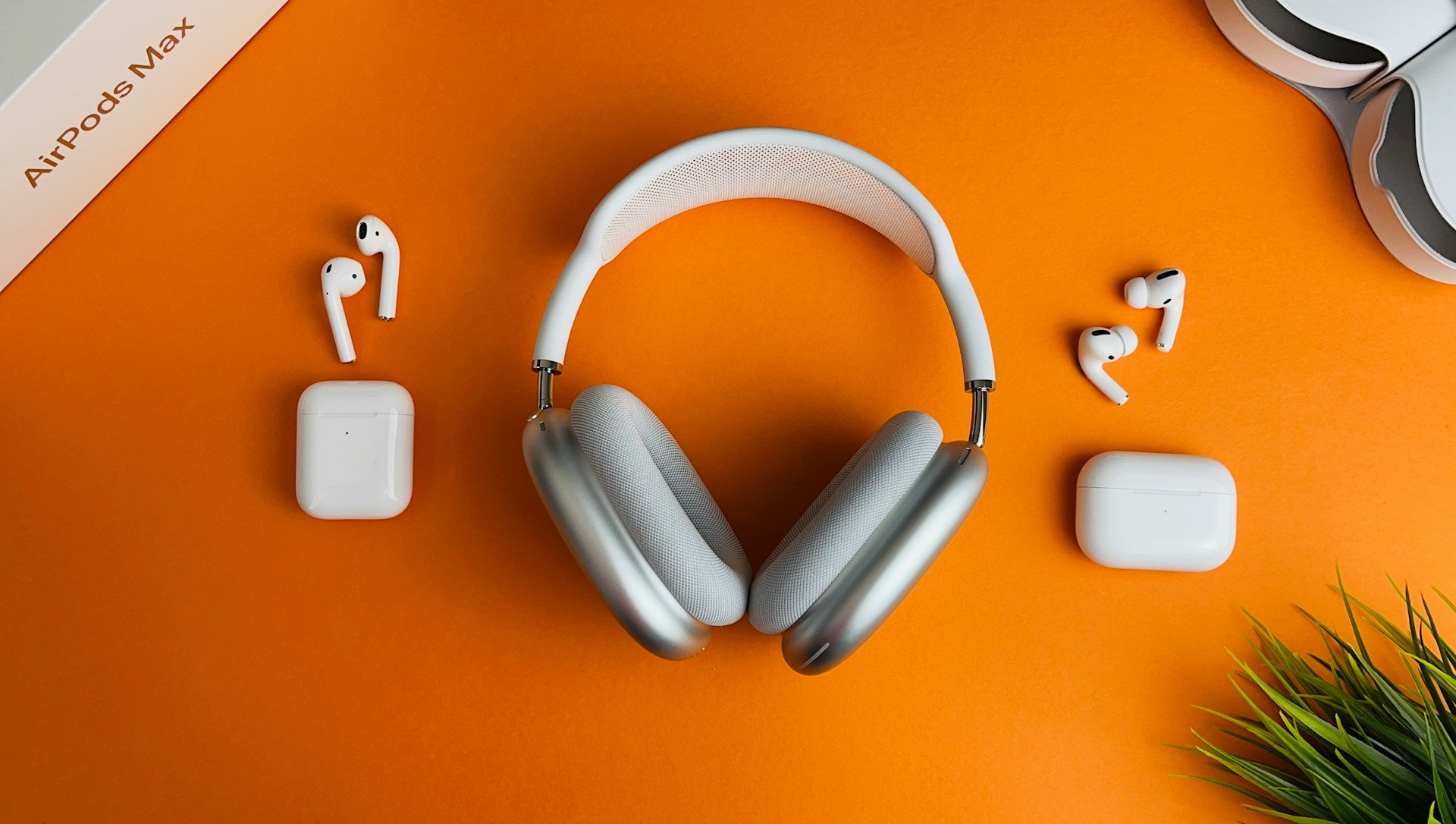

Leave a comment
This site is protected by hCaptcha and the hCaptcha Privacy Policy and Terms of Service apply.